









What Is Autodesk Navisworks?
Autodesk Navisworks is a project review and coordination software for the AEC industry. It allows civil, structural, and MEP teams to federate models from multiple disciplines into a single coordinated view, run clash detection, simulate construction sequences in 4D, and generate quantity takeoffs, all without modifying the source files in Revit, Civil 3D, or other authoring tools. Navisworks works with NWC, NWD, and NWF file formats and reads over 60 native CAD and BIM file types from other vendors.
A BIM coordinator on a mid-size commercial project licenses Navisworks Manage for $2,785 per year. The clash detection they paid for never gets used; the general contractor runs all coordination. The license auto-renews. Manage gets used as Simulate.
The wrong Navisworks version is one of the most common software procurement errors in BIM projects. The two versions share roughly 90% of their features. The deciding factor is a single capability: clash detection.
This guide covers what each version does, where they differ, and how to decide which one your project workflow requires, without overspending on features you will not use.
Table of Contents:
- What Is Autodesk Navisworks?
- Navisworks File Formats: NWC, NWD, and NWF
- Navisworks Simulate: Features and Best Use Cases
- Navisworks Manage: Features and Best Use Cases
- Navisworks Simulate vs Manage: Feature Comparison
- Which Version Should You Choose? A Decision Framework
- What Navisworks Cannot Do
- Common Questions
What Is Autodesk Navisworks? What Navisworks does, what it is not, and why the three-version lineup matters for licensing decisions
Navisworks was originally developed by NavisWorks Ltd in the UK and acquired by Autodesk in 2007. It has since become the dominant model of federation and clash detection platform on US commercial and infrastructure projects.
It is important to understand what Navisworks is not: it is not a BIM authoring tool. You do not model in Navisworks. You review, federate, coordinate, and simulate in Navisworks, using models built in Revit, Civil 3D, ArchiCAD, and other platforms.
Three versions exist: Navisworks Freedom (free viewer, opens NWD files only), Navisworks Simulate (full review and simulation features, no clash detection), and Navisworks Manage (full feature set including clash detection and interference management).
Navisworks File Formats: NWC, NWD, and NWF How the three file formats work, what each one contains, and a critical warning about NWF file path management
Understanding the three file formats is essential before choosing a version.
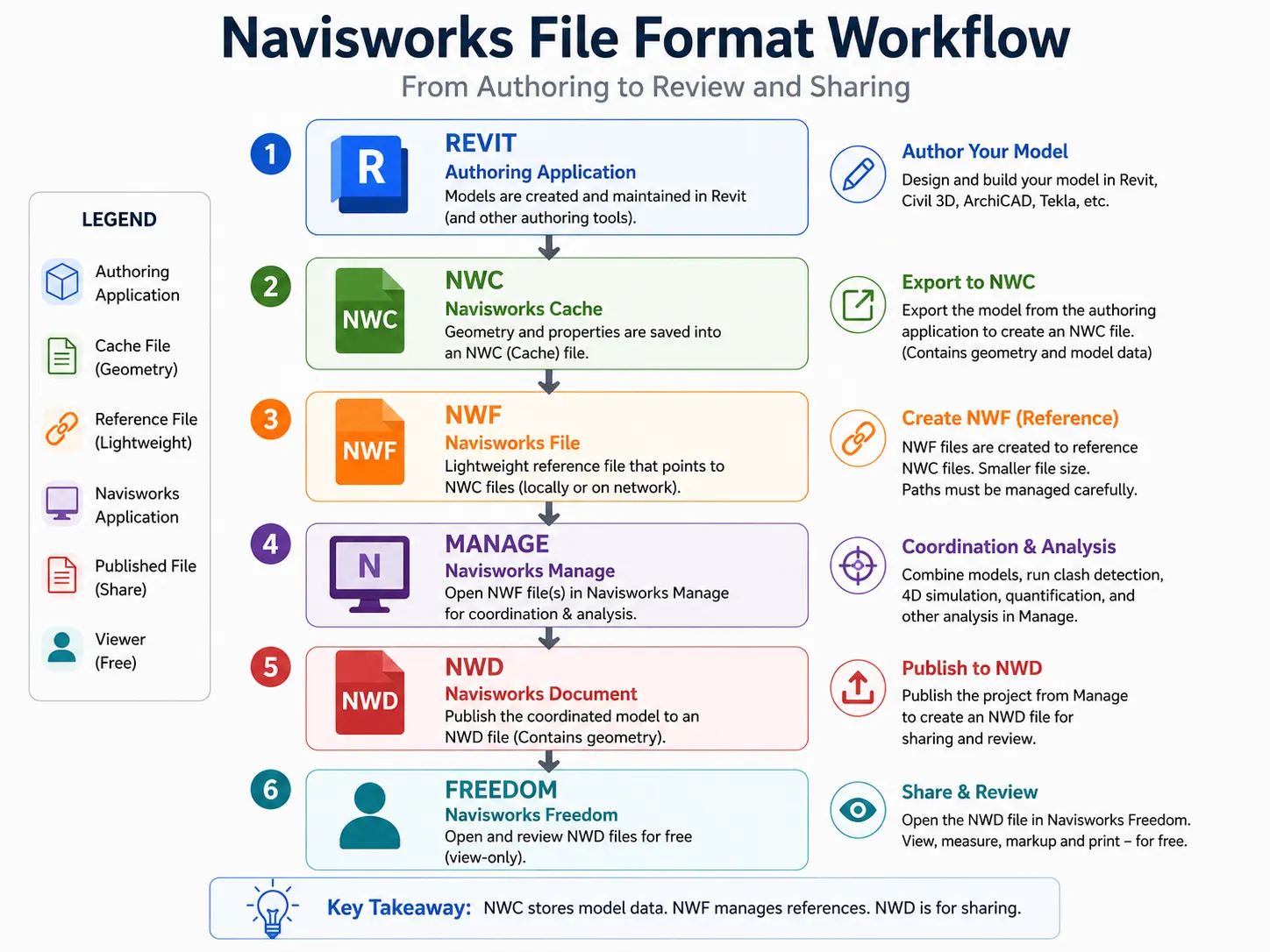
NWC (Navisworks Cache): A cached snapshot of a native file (Revit, Civil 3D, etc.), generated automatically when the native file is opened in Navisworks or exported via the Navisworks plugin. The NWC captures the model geometry at a point in time. When the source file updates, the NWC updates next open.
NWF (Navisworks File): The working coordination file. NWF holds links to all appended discipline NWC files, plus any coordination data added in Navisworks (clash tests, TimeLiner schedules, viewpoints, redlines). The NWF does not embed model geometry; it references the source of NWC files. This keeps the file size small but means the NWF only works where the linked NWC files are accessible.
NWD (Navisworks Document): A published, self-contained file that embeds all model geometry, coordination data, and markups. NWD has no links to source files. It is used for sharing models with stakeholders who need to review but not edit, including via the free Navisworks Freedom viewer.
Warning: NWF files reference source NWC files by file path. If NWC files are moved or renamed, the NWF loses its links and the federation breaks. Always store NWC and NWF files in a shared, stable folder structure, and document the structure in your BIM Execution Plan.
Explore Our BIM Capabilities
Discover how our BIM services help architects, engineers, and contractors improve coordination, streamline workflows, and deliver projects with confidence.
Navisworks Simulate: Features and Best Use Cases The full Simulate feature set, approximate pricing, and the project roles Simulate is designed for
Navisworks Simulate is the mid-tier version. It includes the full Navisworks review and simulation toolkit, minus clash detection.
Key capabilities in Simulate
-
Model federation: aggregate NWC files from multiple disciplines into a single federated view
-
4D TimeLiner: link model elements to a construction schedule imported from Primavera P6 or MS Project; simulate the construction sequence as an animation
-
5D quantification: measure areas, lengths, and counts from 3D models and 2D sheets; export takeoff data to Excel
-
Photorealistic rendering: Autodesk Rendering integration for client visualization
-
Viewpoints and redlining: save specific model views with markup annotations
-
Autodesk Construction Cloud (ACC) integration: publish and share NWD files via the cloud
Simulate subscription pricing (approximate, as of 2024): ~$1,270/year. Note: Autodesk pricing changes periodically, verify current pricing at autodesk.com before purchasing.
Best use cases for Simulate
-
Design teams that need 4D construction simulation for client presentations or investor reviews
-
Architects and engineers who attend coordination meetings but do not run clash detection themselves
-
Project managers who need schedule visualization without clash management responsibility
Navisworks Manage: Features and Best Use Cases What Manage adds over Simulate, clash detection capabilities, and who needs the full version
Navisworks Manage is the full-featured version. It includes everything in Simulate plus clash detection, interference checking, and clash management and reporting.
Key capabilities added over Simulate
-
Hard clash detection: identifies model elements that physically intersect
-
Soft clash detection: identifies elements that violate required clearance zones (e.g., maintenance access corridors around equipment)
-
Clearance clash detection: user-defined buffer zones around specified elements
-
Clash management: assign clashes to responsible parties, track resolution status, generate clash reports in HTML or XML format
-
Interference checking: ongoing clash monitoring that updates as models are revised
Manage subscription pricing (approximate, as of 2024): ~$2,785/year. Verify current pricing at autodesk.com.
Best use cases for Manage
-
BIM coordinators who run the federated model and clash detection meetings
-
General contractors responsible for delivering clash-free coordination packages
-
MEP contractors who coordinate duct, pipe, and conduit routing against structure
-
Anyone whose project contract requires documented clash detection and reporting
Navisworks Simulate vs Navisworks Manage: Feature Comparison Compare features side by side to determine which Navisworks edition best fits your BIM coordination and project delivery needs.
| Feature | Simulate | Manage |
|---|---|---|
| Model federation (multi-discipline) | Yes | Yes |
| 4D TimeLiner construction simulation | Yes | Yes |
| Quantification (Quantity Takeoff) | Yes | Yes |
| Model Visualization | Yes | Yes |
| Viewpoints, redlines, and markup | Yes | Yes |
| Autodesk Construction Cloud integration | Yes | Yes |
| DWF and NWD publishing | Yes | Yes |
| 60+ file format support | Yes | Yes |
| Navisworks Freedom viewer compatibility | Yes | Yes |
| Hard clash detection | No | Yes |
| Soft clash (clearance) detection | No | Yes |
| Clash management and tracking | No | Yes |
| Clash report generation (HTML/XML) | No | Yes |
| Interference checking | No | Yes |
| Approx. annual subscription (2024) | ~$1,270 | ~$2,785 |
Note: Subscription prices are approximate and based on publicly available Autodesk pricing at the time of writing. Actual costs may vary by region, reseller, licensing agreement, subscription plan, and future pricing updates.
BluEntCAD’s BIM coordinators use Navisworks Manage for clash detection and coordination on commercial, MEP, and infrastructure projects across the US.
See how we can support your next project.
The feature gap between Simulate and Manage is narrow but specific. Nine of the fifteen features in the comparison table above are identical between the two versions. The five capabilities unique to Manage are all variations of clash detection.
If clash detection is not in your scope of work, Simulate delivers effectively the same value at roughly half the price. The total cost difference over a five-seat team over three years can exceed $20,000.
The right version is determined by your coordination responsibility on the project, not by which version has the most features.
The question is not which version has more features. It is which version matches your coordination responsibility on the project.
Which Version Should You Choose? A Decision Framework Four practical steps to match the right Navisworks version to your project coordination responsibilities
Step 1: Identify who runs clash detection on your projects. If the general contractor or a dedicated BIM coordinator manages clash detection and you receive clash reports as an input, Simulate is sufficient. If you run the clash tests, manage the issue log, and produce clash reports, you need Manage.
Step 2: Check your contract requirements. Some project contracts or BIM Execution Plans specify that discipline leads must deliver clash-tested models. If your contract requires you to produce and certify a clash-free model, that requires Manage.
Step 3: Assess your 4D scheduling use case. If your primary Navisworks use is construction sequencing visualization for client or stakeholder presentations, and clash detection sits elsewhere in the project, Simulate handles this fully.
Step 4: Consider the full team’s licensing. If your firm employs five BIM authors and one BIM coordinator, one Manage license for the coordinator and Simulate licenses for the authors is typically more cost-effective than Manage licenses across the team.
Warning: Do not license Manage for the whole team if only the BIM coordinator runs clash detection. Manage licenses cost approximately $1,500 more per seat per year than Simulate. On a five-seat team, that is $7,500 per year for clash detection capability that four of those seats will never use.
Recommended Reading:
What Navisworks Cannot Do Three honest limitations that apply to both versions, model authoring, LOD accuracy, and Freedom viewer constraints
Navisworks does not update models; it reviews them.
Clash detection in Navisworks identifies problems in the model. Resolving those clashes requires going back to the source model in Revit, Civil 3D, or the discipline authoring tool. Navisworks has no authoring capability.
Clash detection accuracy depends on model LOD.
A LOD 200 model will produce different clash results than a LOD 350 model of the same building. Running clash detection on early-stage models generates a false sense of coordination of completeness. Confirm LOD requirements before scheduling coordination meetings.
Navisworks Freedom cannot run or manage clashes.
The free viewer only opens NWD files. Stakeholders using Freedom cannot run clash tests, access TimeLiner schedules, or use quantification tools. If subcontractors need active Navisworks functionality, not just model viewing, they need Simulate or Manage licenses.
Choosing the Right Navisworks Version for Your Team
Navisworks Simulate and Navisworks Manage share the same core platform. The decision between them comes down to a single question: who is responsible for running clash detection on your projects?
If that responsibility is yours, you run the tests, manage the issue log, and produce clash reports, you need Manage. If that responsibility belongs to someone else and you consume the output, Simulate delivers effectively the same value at roughly half the annual cost.
Audit your actual Navisworks usage before the next license renewal. The savings from right-sizing the license across a five-seat team over three years can fund a meaningful portion of your BIM coordination overhead.
Need BIM coordination support, including federated model management and clash detection, without adding a Navisworks Manage license to your team?
Talk to BluEntCAD about how our BIM coordinators can support your next project.
Common Questions
What is the main difference between Navisworks Simulate and Navisworks Manage?The primary difference is clash detection. Navisworks Manage includes hard clash detection, soft clash detection, clash management, and interference checking, capabilities absent from Simulate. Both versions share the same model federation, 4D TimeLiner, 5D quantification, and Autodesk Construction Cloud integration features. If your role does not involve running clash detection, Simulate provides equivalent value at approximately half the annual cost.
Can Navisworks Simulate do clash detection?No. Clash detection, including hard clash, soft clash, clearance clash, and interference checking, is exclusive to Navisworks Manage. Simulate includes the full review and simulation toolkit but does not have the clash detection or clash management tools. Teams that need to run and report on clash detection must use Manage.
What is Navisworks Freedom and who should use it?Navisworks Freedom is the free Navisworks viewer. It opens NWD files only and provides basic model navigation and section cutting. Freedom is appropriate for clients, stakeholders, or subcontractors who need to view a published federated model but do not need to run clash tests, use TimeLiner, or access quantification tools. It cannot open NWF files or run any active coordination functions.
What are the three Navisworks file formats (NWC, NWD, NWF)?NWC is a cached snapshot of a native source file (Revit, Civil 3D, etc.) that updates when the source file changes. NWF is the working coordination file, it references linked NWC files and stores coordination data like clash tests and TimeLiner schedules, but does not embed model geometry. NWD is a published, self-contained file that embeds all geometry and data with no links to source files, suitable for sharing with stakeholders including via the free Freedom viewer.
How much does Navisworks Manage cost?As of 2024, Navisworks Manage is approximately $2,785 per year per seat on a subscription license. Navisworks Simulate is approximately $1,270 per year. Autodesk pricing changes periodically, verify current pricing directly at autodesk.com/products/navisworks before purchasing or renewing. Autodesk also offers multi-year subscription discounts and collection bundles that may reduce the per-seat cost.
Does Navisworks work with Revit?Yes. Revit exports NWC files directly via the Navisworks exporter, which is included with the Revit subscription. Navisworks opens these NWC files and can aggregate Revit models from multiple disciplines into a single federated view. Navisworks also reads over 60 other native CAD and BIM file formats, making it the standard platform for federated coordination across multi-discipline Revit projects.





 BIM for Commercial Construction: Solving the biggest Challenges in New builds and Renovation Projects
  The Strategic Limitations of BIM Managers in Preventing Hidden Project Costs
  How AI is Turning BIM into a Live Decision-Making Tool
  From Handover to Digital Twin: BIM for Facility Management